Enterprise Servers
Mobile Workstation
Tower and Rack Workstation Series

DELL EMC PowerEdge Servers

HPE ProLiant Servers

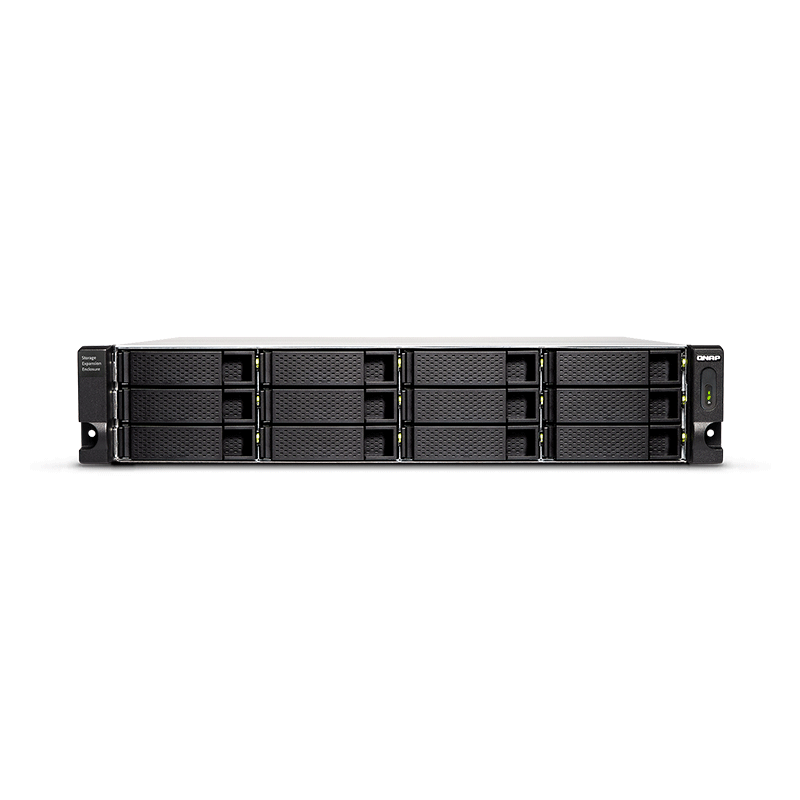
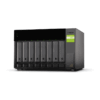
The rackmount TL-R1200C-RP 12-Bay JBOD Expansion Unit from QNAP allows you to back up and expand your QNAP NAS, computers (supports Windows and Mac), and servers. The TL-R1200C-RP features twelve 3.5″ SATA III 6 Gb/s drive bays with 10 Gb/s USB-C 3.2 Gen 2 (10 Gbps) connectivity to provide a fast and smooth expansion solution.
The TL-R1200C provides software-controlled storage configuration for greater management flexibility. Users can configure RAID and monitor JBOD enclosure and disk health with Storage & Snapshots when connected to a QTS or QuTS hero NAS, or with the QNAP JBOD Manager utility when connected to a computer.
You can connect your TL-R1200C to Windows and Ubuntu computers through SFF-8088 (or SFF-8644) high-speed cable and use built-in utility to manage RAID configuration.
The QNAP JBOD Manager is a desktop utility for monitoring the TL-R1200C on Windows and Ubuntu computers. Users can quickly obtain the disk statuses, JBOD information and health, view fan rotation speed, and check for firmware version updates. All device events are recorded, and will send desktop notifications when a system alert occurs.
Migrating a large number of small files or a single large data file by network environment can be time-consuming and consume significant network bandwidth that causes decreased work efficiency. The TL-R1200C supports remote file transfer. All you have to do is set up the RAID configuration and store a large number of files. Then you can move the TL-R1200C to another place and connect it with the computer or NAS to experience the device’s simple plug and play feature and fast data migration.
You can treat each disk in your TL-R1200C as an individual storage space, and also use it as a removable drive. It can function like a high-capacity disk drive reader. When one of the disks reaches data storage limitation, you can remove it and put it into a dry box. Then swap a different disk into the TL-R1200C empty drive slot. After that, you can install the disk that reached full data capacity into the TL-R1200C and connect it with a computer or NAS for direct file access.
You can use the TL-R1200C to expand your NAS storage. You can select disks to create storage pools for expanding your NAS capacity, or you can treat each disk as an individual external storage space and use it as a removable drive for greater flexibility. Regardless of the mode you use, you can always use Storage & Snapshots Manager in QTS or QuTS hero to set up and manage your TL-R1200C and use hard drive S.M.A.R.T and Notification Center to check disk status anytime and anywhere.
Mode 1: Expand NAS Capacity with Storage Pool Mode
You can use Storage & Snapshots Manager in QTS or QuTS hero to configure the RAID storage pool for your TL-R1200C and expand NAS capacity. The TL-R1200C can only be used as an individual storage pool or volume on the NAS. Its storage pool or volume cannot be combined into the connected NAS. NAS applications cannot be installed on the TL-R1200C .
Mode 2: Expand Your NAS with External Storage Mode
You can treat each disk on your TL-R1200C as an individual storage space and expand your NAS capacity. For example, it will show 8 independent external disks on an 8-bay NAS.The TL-R1200C supports multiple disk formats, including NTFS (for Windows), HFS+ (for Mac), EXT4 (for Ubuntu or QNAP NAS), exFAT (for Windows, Mac, Ubuntu, and QNAP NAS) etc.
You can use your TL-R1200C to expand the storage space of Windows and Ubuntu computers. You can set up the RAID configuration of your TL-R1200C to further secure data. You can also use the single disk mode and format with exFAT file system for more convenient access and sharing of files between Windows and Ubuntu computers.
Mode 1: RAID Configuration Mode
You can obtain data protection by building a software RAID 0, RAID 1, and RAID 5 volume with the native utility in your Windows and Ubuntu computers, and use the QNAP JBOD Manager to monitor the TL-R1200C status information.

Mode 2: Single Disk Mode
You can format hard drives with the exFAT file system while accessing and sharing files between Windows and Ubuntu computers. Your QNAP NAS can also use the exFAT file system by buying the exFAT driver license from the QNAP Software Store.
The TL-R1200C features high-speed USB 3.2 Gen 2 Type-C connectivity and built-in USB Attached SCSI Protocol (UASP) to provide convenient fast file sharing and intensive data transfer. The TL-R1200C not only provides you higher file transfer performance than traditional USB interfaces but offers a more cost-effective option than REXP SAS JBOD.

Reviews
There are no reviews yet.